OpenChatCut Pro · Desktop

Edit your videos by chatting with AI.

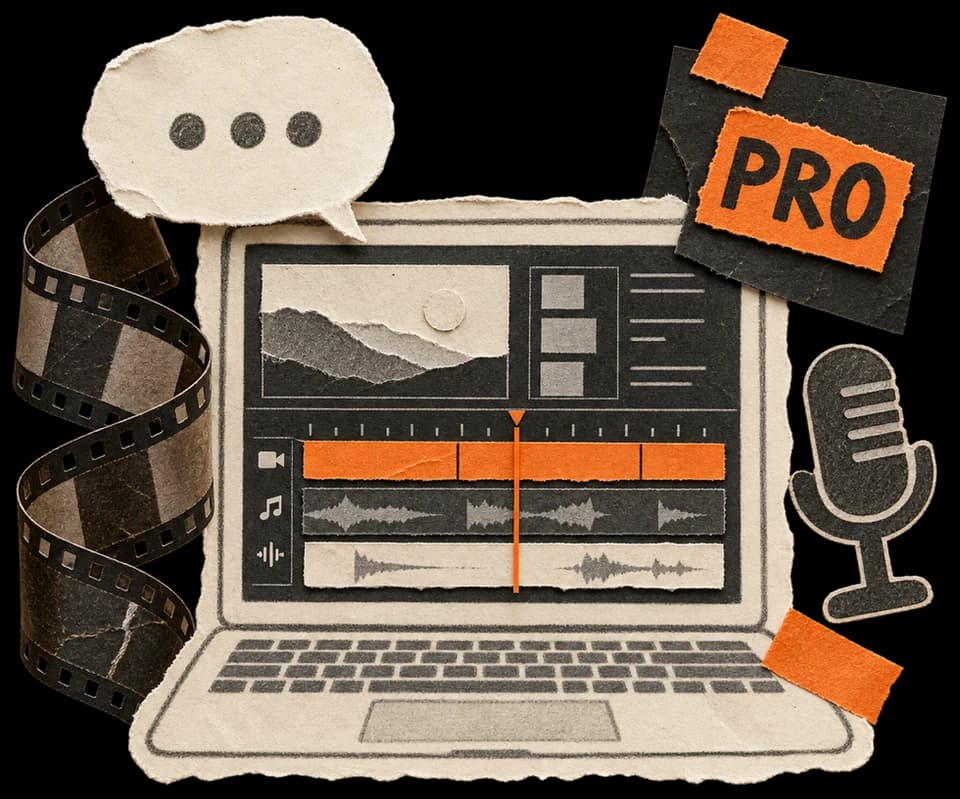
Say how you want the cut, and the agent makes it on a real multitrack timeline: trim pauses, record a voiceover, add captions and music, all in one project. Footage and projects stay on your computer by default.

  • v1.3.1 · released Oct 12, 2026
  • macOS (Apple Silicon and Intel) · Windows
  • 7-day trial on first launch
Open-source editorIllustrative
The OpenChatCut open-source editor with an agent chat, media library, preview and multitrack timeline
Illustration: the OpenChatCut open-source editor. Pro's interface and features are those of the installed release.

One desktop app for the whole edit.

Editing, transcripts, recording, local models and the AI assistant all work on the same project. Here is what the current release can do.

Ask for an edit. The agent does the rest.

The AI assistant has two modes. Q&A talks through ideas with you. Agent mode reads and changes the timeline, media, scenes and project settings. Its edits go through the same commands as your own, so you can undo any step and keep editing by hand.

  • Split, move, join and delete clips; add captions, transitions, effects, sound effects and music
  • Checks its own work: renders frames, measures loudness and reviews the whole timeline before reporting back
  • When a request is ambiguous, it asks you a question with options before it continues
  • 69 built-in skills for talking heads, social video, color, motion, audio and workflows; type / to use one, or write your own
  • Save a cut you like as a reference project, then mention it with # to edit new footage the same way

Try asking

  • Remove the pauses in the second clip
  • Turn this long video into three highlight shorts
  • Line up the cuts with the beat of the music
  • Export this as a JianYing draft so I can finish it there
The OpenChatCut open-source editor, where an agent generates music and adjusts transitions on a multitrack timeline
Illustration: agent edits in the open-source editor. Pro's interface is different.

Edit speech the way you edit a document.

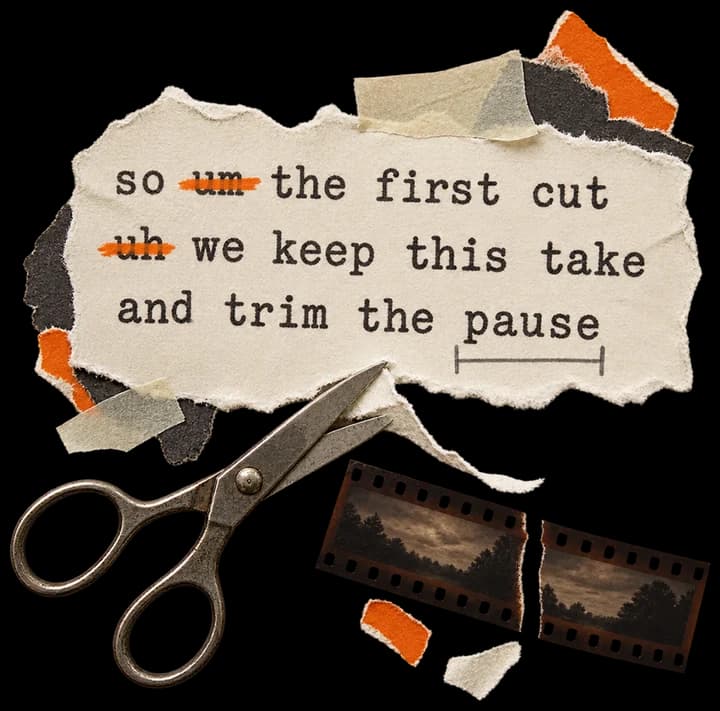
The transcript is another view of the timeline. Once your footage is transcribed with word-level timing, deleting or muting a passage changes the matching clips on the timeline.

  • Remove pauses and filler words like “um” and “uh” in one step, after reviewing the changes
  • Split paragraphs, label speakers and search; click any sentence to jump to that frame
  • Transcripts are saved with the project, so reopening it doesn't mean transcribing again
  • Export SRT captions, or send selected text to the AI to rewrite or tighten

Local speech recognitionSettings → Local models

  • FunASR Nano

    Most accurate for Chinese, about 4× real time on a CPU. Chinese, English, Japanese, Korean and Cantonese.

    Chinese default
  • SenseVoice Small

    About 228 MB. Steadier with mixed Chinese and English and with English narration, and faster.

    Mixed languages
  • Whisper Small

    Covers 99 languages and can translate.

    Multilingual
  • Whisper Large v3 Turbo

    About 1 GB. The most accurate across languages; best for non-Chinese footage.

    Other languages

You can also use cloud transcription from providers such as OpenAI, ElevenLabs, Deepgram or AssemblyAI, with your own key.

Record and edit without switching apps.

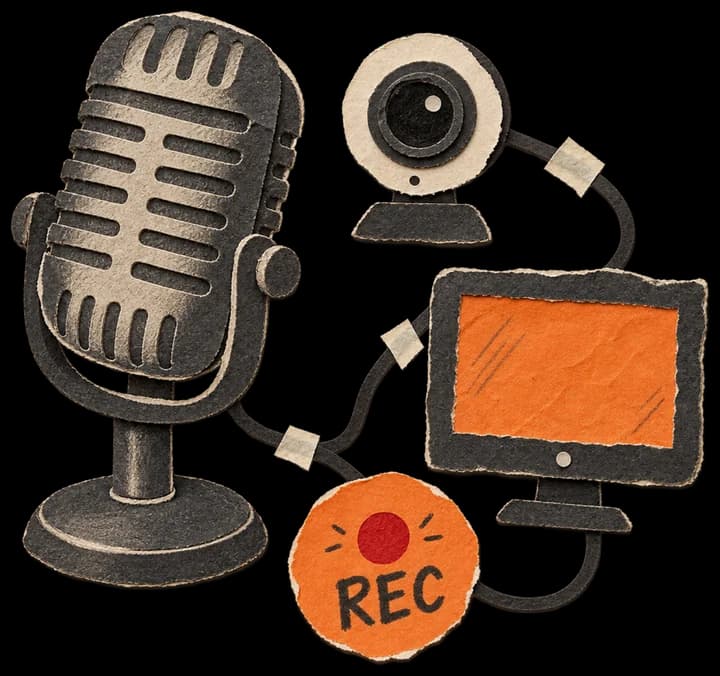
The record button sits at the top of the editor. Recordings land in your media library, can go straight onto the timeline, and are ready to transcribe, clean up and cut.

  • Microphone

    Narration, voiceover and talking heads, with a level meter before you start.

  • Screen

    Software demos and walkthroughs, without a separate screen recorder.

  • Camera

    Yourself on camera, in the same project as the screen and the voiceover.

A typical talking-head video, from recording to finished cut

  1. 01

    Record in place

    Record with your mic or camera. When you stop, the clip is saved and added to the timeline.

  2. 02

    Transcribe locally

    Switch to the transcript view and turn the recording into text with a local model.

  3. 03

    Clean up the text

    Remove pauses and filler words or mute passages; picture and sound are trimmed to match.

  4. 04

    Finish the cut

    Add captions, music, transitions and voiceover yourself or with the agent, then export.

The agent can start, pause and stop recordings for you too, and adds the result to the timeline. Screen and camera recording ask for permission in a system prompt first.

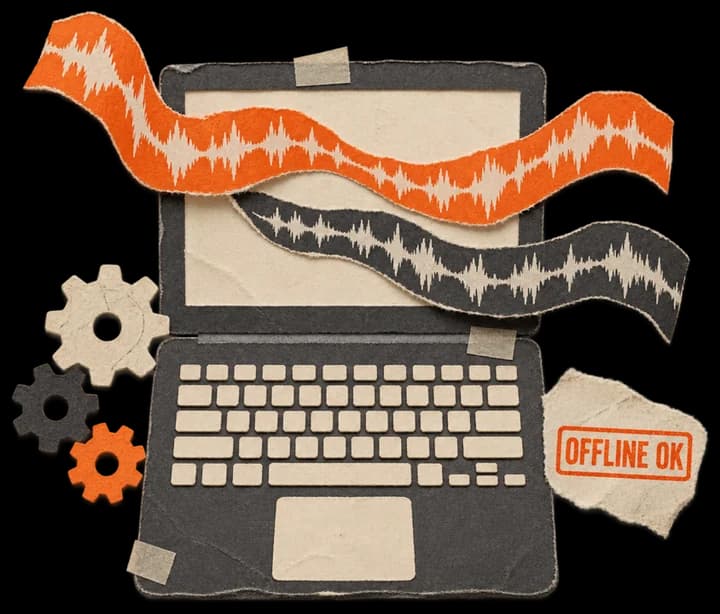
Heavy lifting on your machine. Even offline.

Speech recognition, voices, matting and denoising can run entirely on your computer, with no cloud API. Settings → Overview shows the status of every model and downloads everything this computer can run in one click.

  • Right-click a clip on the timeline for AI matting, denoising, upscaling, stabilization or stem separation
  • Downloads resume after interruptions, retry automatically and are verified with SHA-256
  • Pick a default model for each category, and keep cloud services configured alongside
  • Speech recognitionFunASR, SenseVoice, Whisper
  • Local voices9 voices
  • MattingCut out people and foregrounds
  • DenoisingClean noise from speech
  • Upscaling4× super-resolution
  • Stem separationSplit voice from music
  • StabilizationSteady handheld shots
  • Music analysisBeats for the agent's cuts
  • Text recognitionRead text in the frame
  • Semantic searchFind footage by description

Bring your own models. Connect the services you use.

Add an API key under Settings → Model providers, test the connection and pick the agent's main model. Providers that use API keys work as soon as the key is in, and multimodal models can look at frames and screenshots directly.

  • DeepSeek
  • OpenAI
  • Anthropic
  • Google
  • OpenRouter
  • Groq
  • Moonshot
  • xAI
  • and about a dozen more

Anything else can be added as a custom OpenAI-compatible endpoint, with an optional network proxy. If you're signed in to the Claude Code, Codex or CodeBuddy CLI, you can use it as the agent's model with no API key. If your main model only handles text, add a vision model such as Qwen-VL to look at frames for it.

Image generation
OpenAI, Gemini, MiniMax, WaveSpeed, BytePlus, xAI
Voiceover (TTS)
OpenAI, MiniMax, ElevenLabs, Doubao, Fish Audio, Cartesia and more
Video generation
MiniMax, Kling, Volcano Ark, BytePlus, xAI
Music generation
MiniMax, Mureka, Atlas Cloud, Sonilo
Cloud transcription
OpenAI, ElevenLabs, Deepgram, AssemblyAI, Groq and more
Stock media and sound
Images and video from Pexels, Pixabay, Unsplash, Coverr and more; sound effects and music from Freesound, Openverse and ccMixter

Once configured, describe what you need in the chat and the agent calls the right service to generate or find media and places it on the timeline. Each service bills you under its own terms; these costs are not part of a Pro license.

Plug into your AI toolchain.

Pro supports MCP (Model Context Protocol) in two directions: let Claude Code, Codex or Cursor work on your project, or give the built-in agent your local tools. They do different jobs and can be used together.

Outside agent → your project

Open a project to Claude Code, Codex or Cursor

Under Settings → External agent, Pro shows a local MCP endpoint (Streamable HTTP) and an access token. Add them to an external tool and it can read the timeline and run editing tools.

  • The endpoint requires a bearer token, which you can regenerate at any time
  • The panel lists connected clients and how many calls they made
  • It includes setup instructions you can paste straight into your AI tool

Add it in Claude Code (endpoint and token are in Settings → External agent)

claude mcp add --transport http openchatcut <endpoint> \
  --header "Authorization: Bearer <token>"
Your tools → the built-in agent

Connect local MCP servers to the built-in agent

Hook up MCP servers such as a memory store, a database or your file system, and the agent can use them while it edits.

  • Supports MCP servers launched locally over stdio
  • Add, enable or disable them in .agent/mcp-servers.json in your user data folder
  • Their tools sit alongside the built-in editing tools for the agent to use

Beyond the AI, a complete editor.

Anything the agent can do, you can do by hand, and anything it changes, you can keep adjusting.

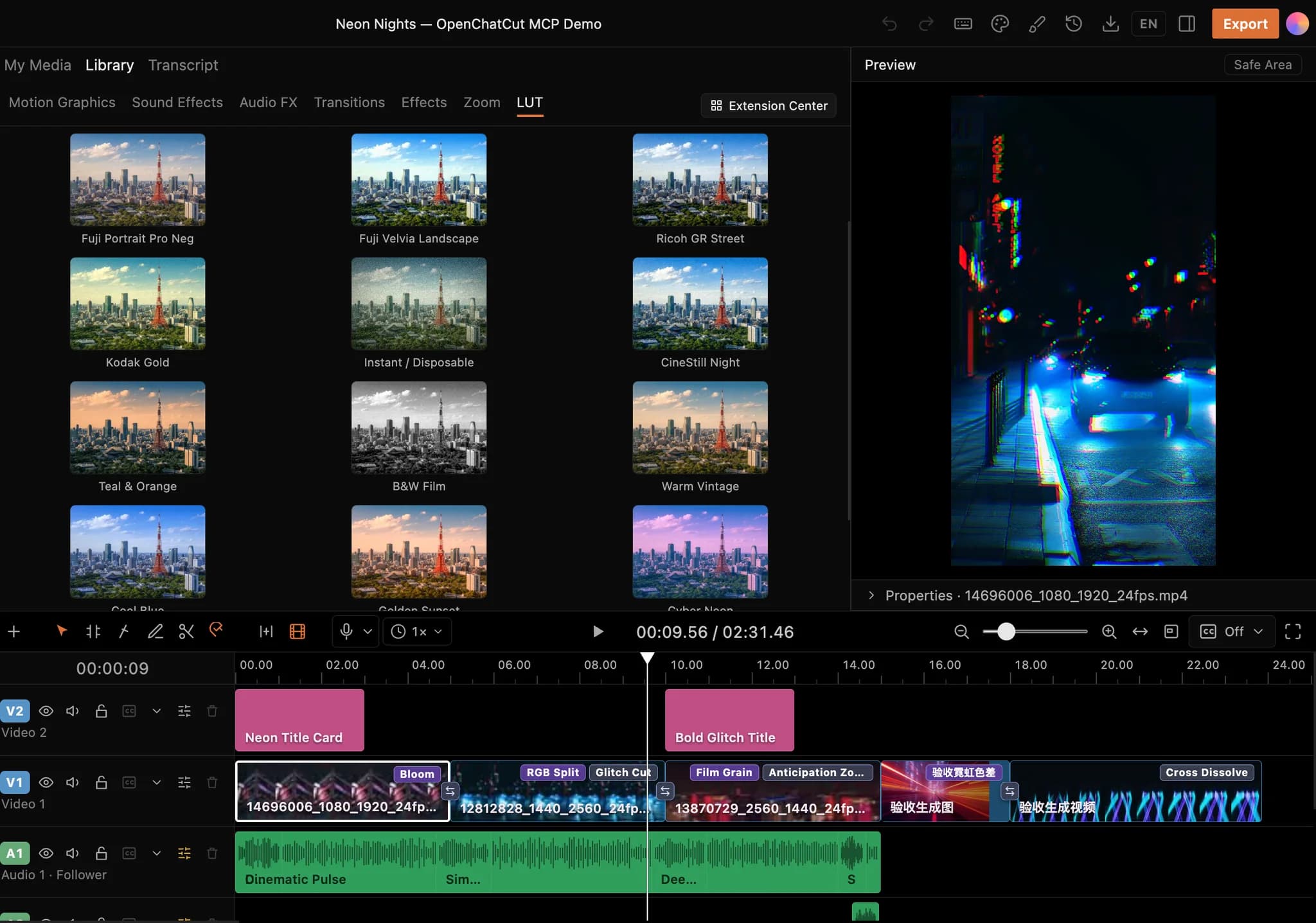
Open-source editor · LUT libraryIllustrative
The OpenChatCut open-source editor with its LUT library, a vertical neon street preview and a multitrack timeline marked with effects and transitions
Illustration: the LUT library and timeline in the open-source editor. Pro's interface and features are those of the installed release.

Editing

  • Multitrack timeline, several sequences per project
  • Keyframes with custom Bézier easing
  • 9 mask types, 17 blend modes
  • Speed changes and speed curves
  • Native preview and proxy files

Picture

  • 87 effects
  • 42 transitions
  • Film looks, LUT import and AI color
  • Animated stickers and Lottie
  • Brand kit: colors, fonts and caption presets

Text and sound

  • 49 text animations
  • 57 caption presets, plus JianYing preset import
  • Karaoke caption templates
  • 38 bundled font families, plus your own
  • Music, sound effects and audio fades

Delivery

  • MP4, WebM, GIF, MP3 and WAV export
  • Hardware-accelerated encoding
  • 16:9, 9:16, 1:1 and 4:5 in one export
  • SRT and TXT captions
  • Pre-export check and export history

Your footage and keys stay on your computer.

Pro is built around local projects. When you turn on a cloud model, cloud transcription or an online media service, the content that task needs goes to the provider you chose.

  • Projects, media and agent conversations are stored locally
  • API keys and OAuth credentials live in a local database and are never uploaded
  • Keys for chat models and for media services are stored separately
  • Downloaded local models run on your machine, with or without a connection
  • Trial and license checks send only a device ID, the app version, a system and hardware summary and crash reports, never project content, media or prompts

Get started in three steps

Installers are downloaded from this site. No GitHub account needed.

  1. 1

    Download and install

    Choose the macOS (Apple Silicon or Intel) or Windows installer on the download page. The macOS installers are signed and notarized by Apple.

  2. 2

    Start your trial

    The first time you launch Pro online, it claims a 7-day trial that includes the AI features and MCP access.

  3. 3

    Activate

    After the trial, editing, export and local models keep working; the agent chat, cloud media jobs and external MCP access need a license. Email the team for a license key, then enter it under License in the app.

Open source or Pro?

The two editions are separate pieces of software for different ways of working.

Open source

Public source. Build it your way.

The source is public on GitHub, and you can use and modify it under the AGPL. A good fit for developers and creators who want to study the code, adapt it or build it themselves.

  • Public source code and community docs
  • Installers for macOS, Windows and Linux, or run from source
  • Configure your own models and connect external agents over MCP
Download open source
OpenChatCut ProDesktop app

Install it and start cutting.

A proprietary desktop editor with installers on this site. A good fit for creators who want to get straight to work with transcript editing, recording and local models.

  • Signed and notarized macOS installers, plus a Windows installer
  • 7-day trial on first launch
  • License keys and support by email
Download Pro

A few things to know

How does Pro relate to the open-source edition?

Both are OpenChatCut, but they are separate pieces of software. The open-source edition's code is public on GitHub under the AGPL. Pro is a proprietary desktop app with installers on this site. Their features and interfaces differ, so open-source tutorials, ports and data folders don't carry over to Pro.

How do I try and activate Pro?

Install it and launch it while online, and it claims a 7-day trial automatically. After the trial, enter a license key under License in the app to keep all the AI features. Email the team to get a key.

What still works after the trial?

Editing, export and downloaded local models keep working. The agent chat, caption translation, cloud media jobs and external MCP access need an active license.

Do I need my own AI models?

Yes. The agent connects to an LLM using your own API key, from about 20 providers including DeepSeek, OpenAI and Anthropic, or any OpenAI-compatible endpoint. Model and media services bill you directly and are not included in a Pro license. Local models such as speech recognition run on your computer at no per-use cost.

Will my footage be uploaded?

Not to OpenChatCut. Projects, media, conversations and keys are stored on your computer by default; when you turn on a cloud model, cloud transcription or an online media service, the content that task needs goes to the provider you chose. Trial and license checks send only a device ID, the app version, a system and hardware summary and crash reports.

Which systems are supported?

macOS 11 or later, with separate installers for Apple Silicon and Intel that are signed and notarized by Apple, and Windows x64. The Windows installer isn't code-signed yet, so SmartScreen may warn on first run; choose More info → Run anyway. The app is available in English and Chinese.

Does Pro work offline?

Downloaded local models run offline. Claiming the trial, activating a license, and cloud models, cloud transcription and online media all need a connection.

Your next film starts with your idea.

Download Pro and try it free for 7 days. Questions about licensing or anything else? Email us any time.