Text-Based Video Editing: A Practical Transcript-First Workflow
Learn how to edit video by transcript without losing pacing, context, or timeline control—from word-level cuts and pauses to captions and final review.
 OpenChatCut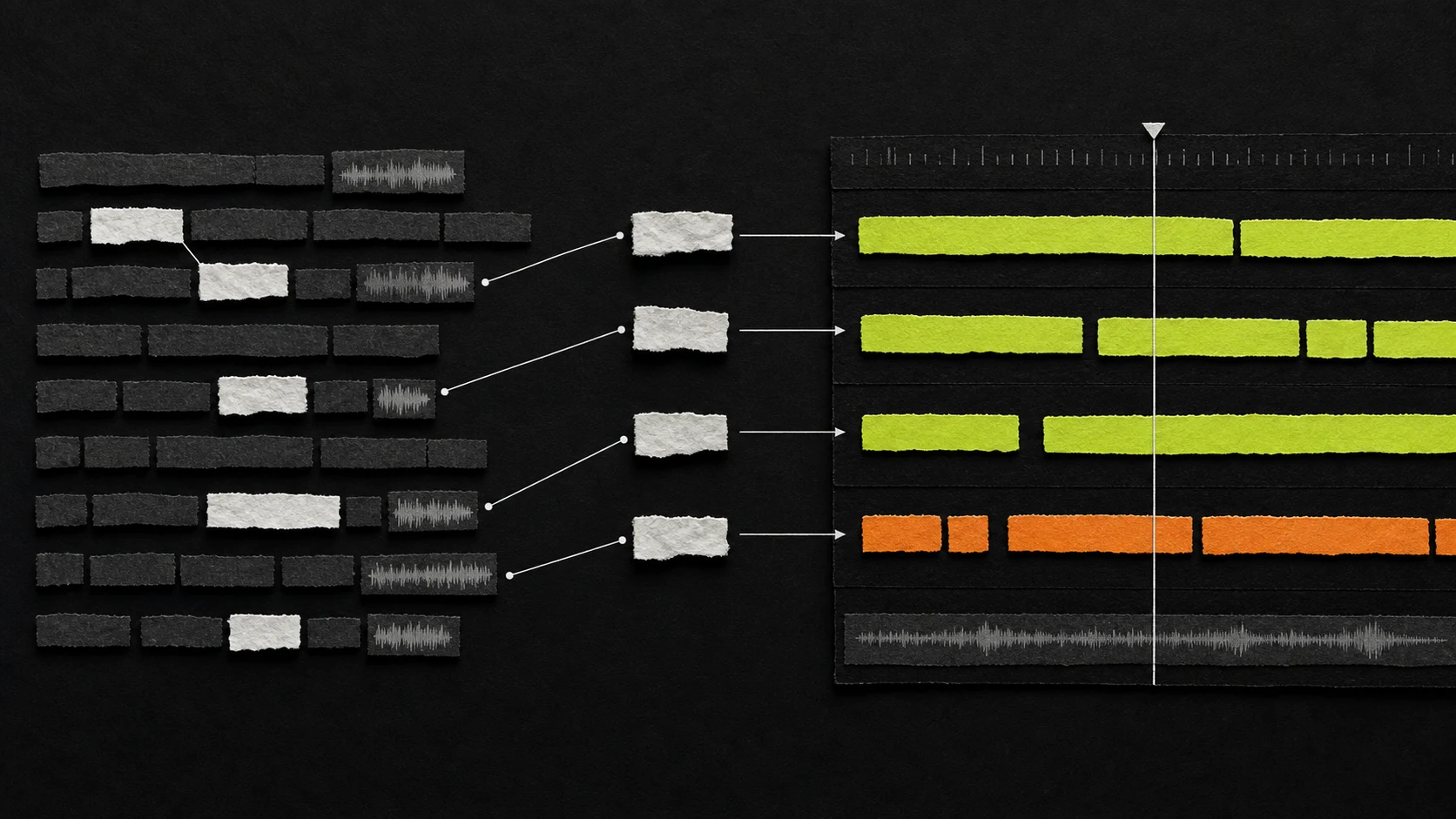
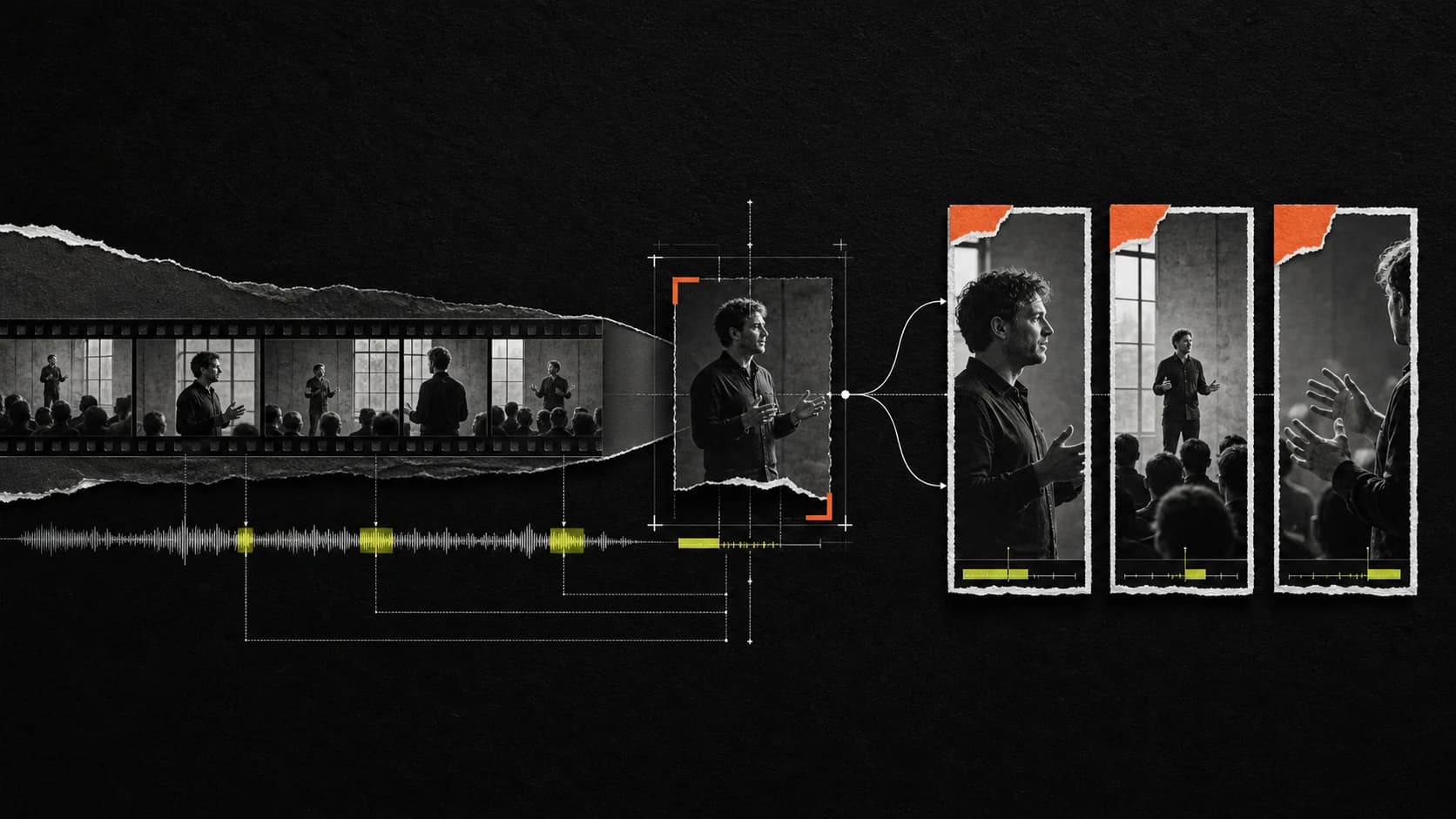
Text-based video editing turns speech into an editing interface. Instead of hunting through a waveform for one repeated sentence, you find the words, select the unwanted passage, and make a cut that remains visible on the timeline.
That sounds simple. The difficult part is not transcription; it is preserving meaning, rhythm, and clean audio after the text changes. A reliable transcript-first workflow treats the transcript as a time-coded index into the source, not as a document that can be rewritten without consequences.
What text-based video editing is—and is not
A transcript video editor connects every recognized word to a source time range. Deleting words can therefore trim the linked media. Searching for a phrase can move the playhead to the exact moment it was spoken. Speaker labels and pauses expose structure that is hard to see in a conventional waveform.
The transcript is not the same thing as captions:
- Transcript: an editing and navigation layer tied to source timing.
- Captions: a presentation layer designed for viewers.
- Timeline: the final source of truth for clips, gaps, transitions, audio, and overlays.
Keeping those roles separate matters. You may remove a false start from the edit, correct capitalization in the captions, and still keep the original source untouched in the media pool.
Before you transcribe: improve the input
Transcription quality sets the ceiling for every text-based cut. Before starting:
- Use the cleanest available audio track.
- Confirm the project frame rate and source synchronization.
- Identify the spoken language and recurring names.
- Separate speakers when the interview format makes that useful.
- Keep a copy of the unedited project or create a version checkpoint.
Background music, overlapping voices, remote-call compression, and very low microphone levels can all reduce word timing accuracy. If the transcript looks unreliable, fix or isolate the audio before using it for structural edits.
The transcript-first workflow
1. Read for structure before deleting anything
Make one pass through the transcript and mark:
- the central claim or story;
- the strongest opening sentence;
- repeated explanations;
- tangents that do not support the outcome;
- factual statements that need visual or source verification;
- sections where a cutaway can hide an audio edit.
For an interview, this pass often reveals a cleaner order than the recording order. For a tutorial, it exposes setup steps that were explained too late. Do not polish sentences yet; decide what the piece is about.
2. Build a paper edit
Create a short text outline using only passages that exist in the recording. A useful structure is:
- hook;
- context;
- main explanation;
- proof or example;
- conclusion or call to action.
This is a “paper edit”: the intended story before detailed timeline work. It prevents the common failure mode of spending twenty minutes cleaning fillers from a section that will later be removed completely.
3. Make structural cuts first
Remove whole answers, repeated ideas, and off-topic blocks before working word by word. Large cuts create the biggest improvement and are easiest to review.
After each structural cut, inspect three boundaries:
- Meaning: does the sentence before the cut logically connect to the sentence after it?
- Picture: does the visual jump require B-roll, a punch-in, or a different angle?
- Sound: did the cut remove a breath or create an unnatural collision?
Text can look perfect while the edit still sounds wrong. Always audition the boundary.
4. Handle pauses and filler words with a policy
Not every “um,” breath, or silence is a defect. Removing all of them can make a speaker sound synthetic.
| Material | Usually keep | Usually shorten or remove |
|---|---|---|
| Short breath | Natural phrase separation | Breath colliding with the next word |
| Pause | Reflection, emphasis, emotional beat | Dead air that adds no meaning |
| Filler word | Character, hesitation that matters | Repeated filler that blocks comprehension |
| Repetition | Deliberate emphasis | Restarted sentence or duplicate explanation |
Start conservatively. Compress long pauses, remove obvious false starts, then listen at normal speed. If the speaker loses personality, restore some space.
5. Repair cut boundaries on the timeline
Word timestamps are precise enough to guide a cut, but they are not a substitute for listening. Consonants can begin before the recognized word boundary; room tone can change between phrases; an edit can land on a blink or hand gesture.
Use the timeline to:
- add a few frames before or after a word;
- preserve breaths that belong to the next phrase;
- place a short audio crossfade where room tone changes;
- cover visible jumps with relevant B-roll;
- avoid cutting in the middle of camera movement.
This is why an editable timeline is important: the transcript gets you close quickly, and the timeline lets you finish accurately.
6. Generate captions after the story is stable
Do not treat the raw transcript as finished subtitles. Once the structural edit is locked:
- regenerate or relink captions to the edited timing;
- correct names, punctuation, and technical terms;
- break lines by meaning, not arbitrary character count;
- keep captions away from faces and platform UI;
- preview at the actual delivery size;
- export an SRT when the publishing platform needs a sidecar file.
See the OpenChatCut caption workflow for styling and export details.
7. Review without reading
Close the transcript and watch the sequence like a viewer. Then listen once without watching.
The visual pass catches jump cuts, awkward crops, and overly busy captions. The audio-only pass catches clipped syllables, missing breaths, noise-floor changes, and pacing problems that readable text can hide.
A useful Agent prompt
An AI editor is most useful when the request defines editorial rules and asks for a reviewable proposal:
Read the transcript and propose a 90-second rough cut. Keep the speaker's main claim, one concrete example, and the final takeaway. Mark repeated ideas and pauses longer than 1.2 seconds for removal. Preserve short breaths. Do not add B-roll or captions yet. Show the proposed sequence before applying it.
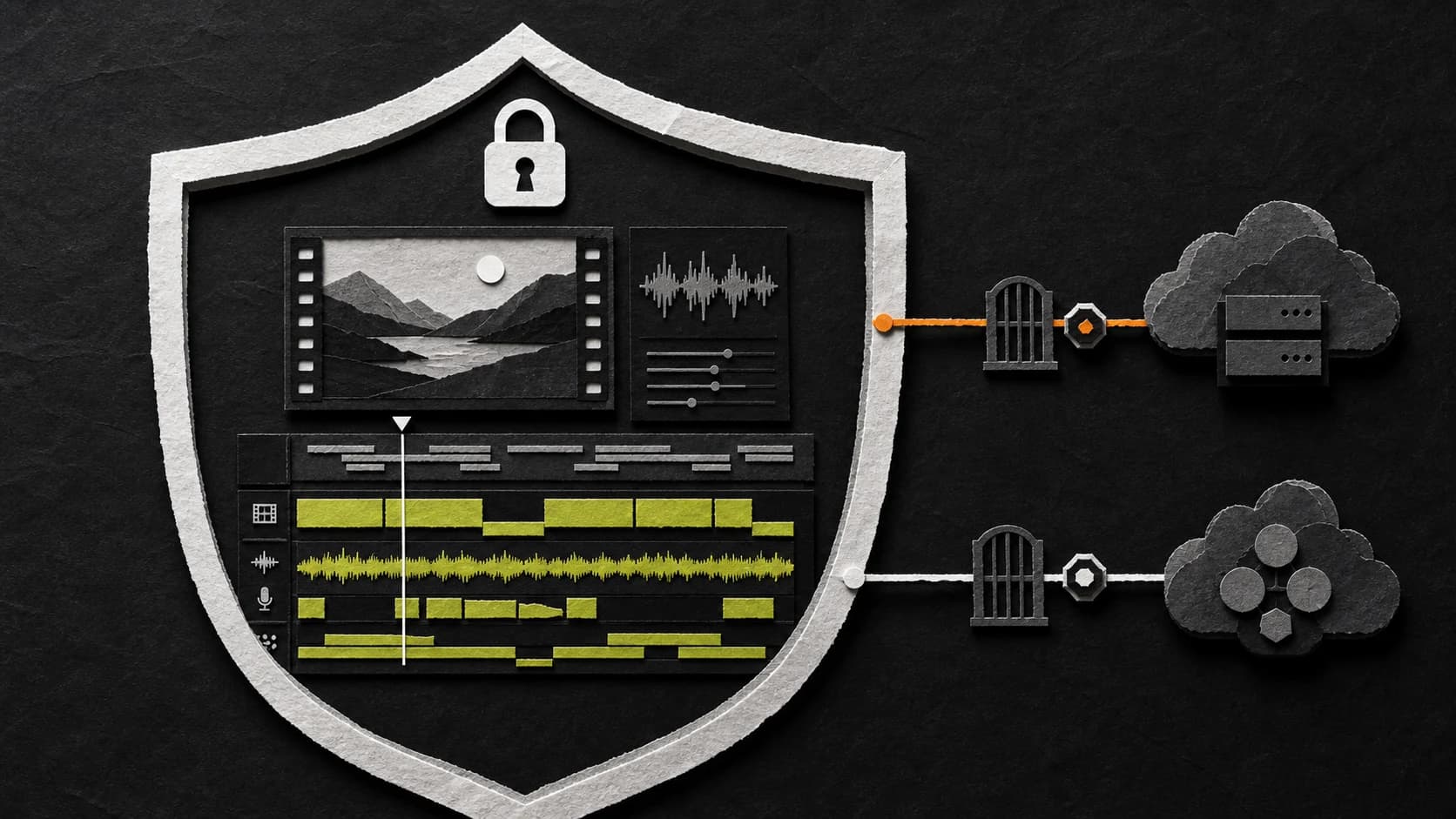
This prompt specifies the outcome, retention rules, pause policy, and review boundary. In OpenChatCut, the built-in Agent and external MCP clients work through the same project tools, so accepted edits land on the real multitrack timeline instead of producing a separate black-box render. Learn more in AI Agent video editing.
Common failure modes
Deleting every filler automatically
The result becomes fast but tiring. Use filler removal to improve comprehension, not to maximize word density.
Trusting text without checking the picture
A clean sentence can hide a severe jump cut. Review face position, gesture continuity, and camera movement at every important boundary.
Correcting the transcript before the rough cut
Perfecting punctuation in material that will be deleted wastes time. Structure first, wording second, caption polish last.
Using captions to hide weak structure
Animated words do not rescue a clip without a clear idea. If the spoken sequence is confusing without captions, fix the edit.
Letting an Agent apply vague instructions
“Make it engaging” has no measurable boundary. Define target duration, audience, must-keep ideas, removal policy, and whether the Agent should propose or apply.
Final transcript-editing checklist
- The first sentence establishes a clear reason to continue.
- Every retained section advances the same argument or story.
- No cut clips a syllable, breath, or reaction.
- Pauses feel intentional rather than mechanically removed.
- Jump cuts are accepted, reframed, or covered deliberately.
- Captions match the final timeline, not the original recording.
- Names and domain terms were checked manually.
- The edit works once without reading the transcript.
- A project version exists before final export.
Text-based editing is fastest when it shortens navigation and decision-making without hiding the underlying edit. Download OpenChatCut to try a transcript-driven workflow on a real, editable timeline, or read why the timeline remains the source of truth.